Twitch Auto Clips: Just Say “Twitch, Clip That” — Hands-Free Clipping

Twitch Updates · 2026-07-14
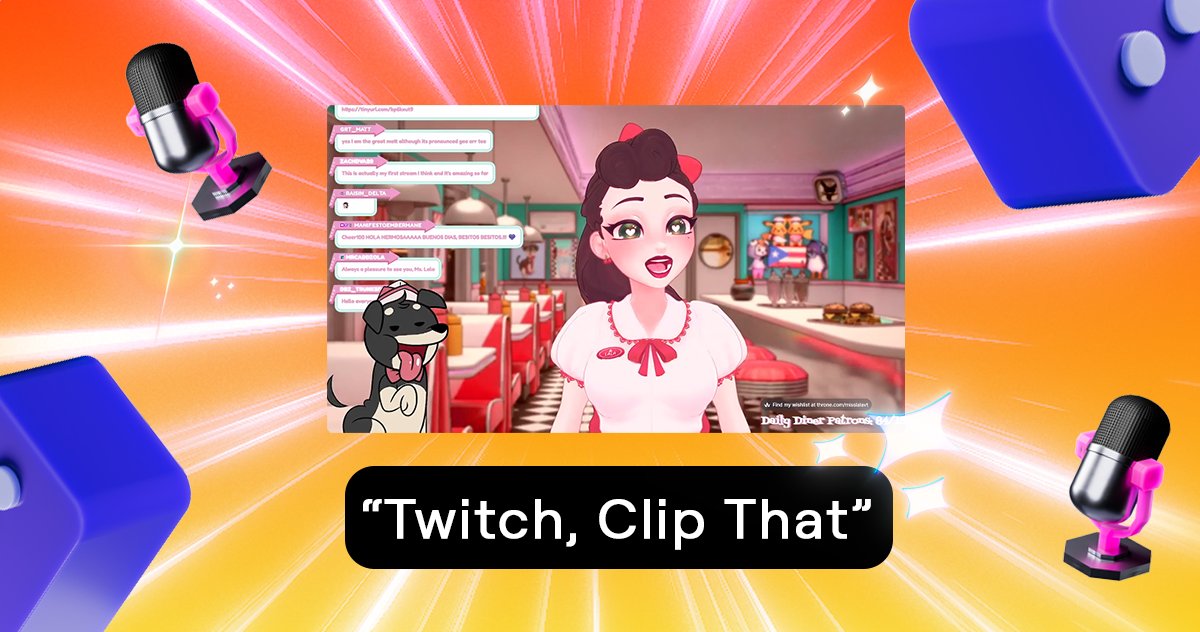
Twitch keeps building out its Auto Clips feature — and the latest step makes capturing highlight moments easier than ever: you just say it out loud. 🎬
“Twitch, Clip That” — that phrase is now all it takes while you're live, and Twitch automatically creates a clip of what just happened. No hotkey, no window switching, no hand leaving your mouse or controller. 💬
How does “Clip That” work?
The moment you say the voice command “Twitch, Clip That” on stream, Twitch automatically captures the last few seconds as a clip in the background. The clip then shows up in your Clips Manager, ready for you to review, trim, title and publish whenever you like.
The beauty of it: you stay fully in the game. In the heat of the moment — the clutch play, the surprise plot twist, the spontaneous laugh — there's usually no time to fiddle with creating a clip. That's exactly where the voice command shines.
Who gets the feature?
The rollout starts in English first and is available to Partners and Affiliates. More languages and wider availability are likely to follow, as is typical for Twitch features.
What is Auto Clips, exactly?
Auto Clips is Twitch's system that automatically detects potentially clip-worthy moments in your stream and prepares them as clips. “Clip That” now adds a deliberate, voice-driven option: you decide in the moment what gets captured. You'll find all the details in the official Twitch Auto Clips help article.
Why this matters for streamers
For streamers it means more content with zero extra effort — every clip is material for YouTube, TikTok or Reels. And the more that gets clipped and shared, the more visible streams and their moments become. If you're tracking your Twitch journey anyway: your badge collection is always here on BadgeBase.
Give it a shot on your next stream: “Twitch, Clip That” — then head to your Clips Manager. 💜
Official source at Twitch: Twitch Auto Clips – Help Center.